KnowledgeBase
Search or browse in depth articles, software resources and videos on everything about Appward.
-
Getting Started with Whiteboards (Last Modified on April 29, 2024)
The Whiteboards app introduces a digital platform that mirrors the functionality of traditional whiteboards. This app integrates with many of the apps in the Appward ecosystem, offering a versatile and dynamic space for brainstorming and teamwork. Easily switch between various tools, such as sketching, adding text, creating shapes, and adjusting elements, fostering a fluid and intuitive collaborative experience. Whether working remotely or in a physical space, the Whiteboards app facilitates efficient communication, idea visualization, and project management.
-
Getting Started with Checklist Creator (Last Modified on March 04, 2024)
Managing multistep processes across your business can be difficult, especially when you need to maintain consistency and ensure tasks are being completed correctly. When steps are missed or not signed off on correctly, vital elements can be overlooked, and more time is wasted in following up or revisiting specified tasks.
-
Getting Started with Actions (Last Modified on March 07, 2024)
Appward’s Actions app makes it easy for teams to manage tasks smoothly, ensuring everyone stays on the same page, takes responsibility, and tracks progress effortlessly. It simplifies handling your daily tasks or intricate processes with clear visibility.
-
Getting Started with Safety Sheets (Last Modified on January 04, 2024)
The Safety Sheets app is used to track this documentation for chemicals used within an organization, as well as verify that proper compliance is upheld with regards to training and notification of employees. This guide will cover everything you need to know about Safety Sheets including where to find safety sheet files, how to create new records, how to send approval requests for a safety sheet and where to find the necessary training for a particular chemical or part.
-
Getting Started with Time Off (Last Modified on December 18, 2023)
Time Off is an app for both employees and managers to streamline and simplify the entire leave management process. This guide will cover everything you need to know about Time Off including how to create a new request, approve a request, configure the settings of the app and generate PDF reports of employee time off.
-
Getting Started with Assets (Last Modified on March 21, 2024)
Organizations frequently rely on manual methods and basic practices for asset management, which leads to error-prone processes and inadequate control over their assets.
-
Getting Started with Surveys (Last Modified on December 14, 2023)
The Surveys app, along with Survey Director, is a set of apps that improves the process of creating and managing surveys for your organization. Effortlessly share surveys within your team, enabling access through any web browser while boosting response rate through emails, notifications, and reminders.
-
Getting Started with Maintenance (Last Modified on December 20, 2023)
The Maintenance app is designed to help organizations manage essential work tasks. It’s important to complete maintenance tasks at an efficient pace to stay on track and ensure business assets are functioning optimally.
-
Getting Started with Roles (Last Modified on December 04, 2023)
The Roles app offers a user-friendly solution for establishing and overseeing various roles within your organization. With this versatile app you can create and manage distinct roles, allowing you to tailor permissions based on specific positions, contacts, and applications.
-
Getting Started with Installations (Last Modified on December 22, 2023)
The Installations app provides a centralized solution to track and manage installs with easy access to information such as installation schedules, product details and customer requirements.
-
Getting Started with Safety Incidents (Last Modified on November 30, 2023)
Safety Incidents is an application for keeping track of workplace accidents. This guide will cover everything you need to know about Safety Incidents – from recording a new incident to following up with everyone involved and taking corrective actions based on those incidents.
-
Getting Started with Licenses (Last Modified on November 29, 2023)
Licenses is a purpose-built application designed to efficiently manage and monitor licenses issued to your organization’s customers. By overseeing the licenses granted, your organization can effectively monitor customer payments, ensuring adherence to sound business practices and safeguarding financial assets.
-
Getting Started with Territories (Last Modified on November 27, 2023)
This guide will cover everything you need to know about the Territories app including where territory records come from, how to navigate the app and how to configure your default app settings to suit your preferences.
-
Getting Started with Parts (Last Modified on February 08, 2024)
Appward’s Parts app streamlines the process of managing your inventory, offering a user friendly solution for effective part tracking. With Parts, you gain a dynamic, teal-time overview of all the parts in your inventory. This visibility extends to how these parts are utilized across your operations.
-
Getting Started with Suggestions (Last Modified on November 16, 2023)
The Suggestions app is like a suggestion box for your team. It’s a simple way for employees to share their ideas to make things better at work. This guide will cover everything you need to know about the Suggestions app including how to create a suggestion, set up a suggestion budget, request approval for the suggestion and execute on an approved suggestion.
-
Getting Started with Inventory (Last Modified on February 16, 2024)
Appward’s Inventory app is a centralized interface for managing your inventory and providing up-to-date visibility of the products and components across your organization. Track any inventory, big or small, to ensure that you are always sitting at optimal stock levels. With this app, you’ll be ready to track everything coming in and out of your stock and make well-informed decisions for the future.
-
Getting Started with Shipping (Last Modified on November 13, 2023)
Appward’s shipping app provides a straightforward, all-in-one solution for efficient shipping management. Shipping works with major carriers like FedEx, allowing you to track shipments in real time and improve your shipping strategist, improving customer satisfaction.
-
Getting Started with Changes (Last Modified on August 15, 2024)
Appward’s Changes app provides a comprehensive solution to manage change requests thoroughly while minimizing disruptions, mitigating risks, improving resource allocation and promoting a culture of continuous improvement. With Changes, your employees have a structured system for requesting improvements, while giving your organization’s management a way to evaluate and execute changes.
-
Getting Started with Work Order Director (Last Modified on October 27, 2023)
Work Order Director is a companion app to Work Orders. While your production team uses Work Orders to tackle their assigned tasks, think of Work Order Director as the app for overseeing and streamlining the whole process. This guide will cover everything you need to know from creating work orders to adding individual steps and releasing them to your workforce to get work done.
-
Getting Started with Work Orders (Last Modified on October 27, 2023)
Work Orders is an application for tracking and managing the work assignments within your organization. This guide will cover how to navigate the app and complete a work order from start to finish.
Getting Started Articles
Getting Started FAQs
Introduction
Appward's Labor Tracking app offers a comprehensive solution for monitoring employee productivity. Easily track work hours, compare estimates with actual time spent, and generate customizable reports for insightful labor metrics. With full transparency, ensure tasks are allocated effectively, promoting efficiency and productivity across the board.
Let's get started
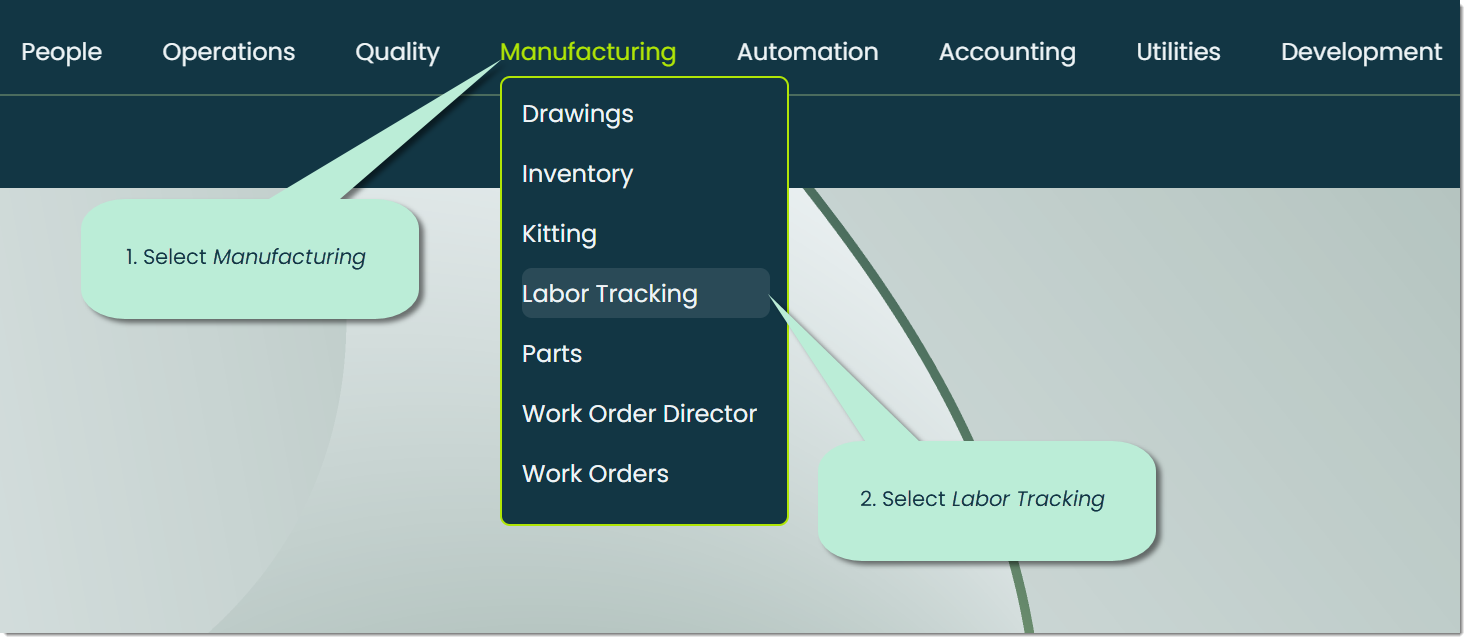
To open the Labor Tracking app, go to the Manufacturing category of the main navigation bar and select Labor Tracking.
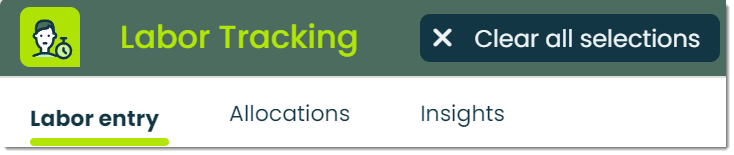
When you open the app, the first thing you'll see is the Labor Entry tab, which will serve as the main hub for tracking time spent on labor.
Note: The functionality of this app relies on data from other applications, such as the Employees app. If you haven't set up any employee profiles yet, you won't be able to begin using Labor Tracking.
Let's go over each of the tabs from left to right.
Labor Entry - This tab is where you can begin the process of accurately tracking the time an employee spends on a labor task.
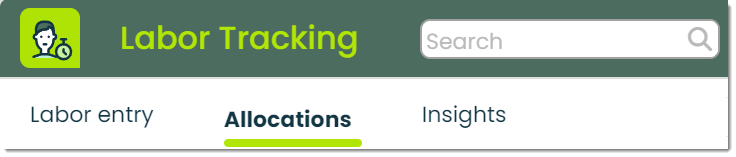
Allocations - The Allocations tab is where you can view a list of submitted labor entries.
Insights - This tab is used to provide an analysis of your organization's labor data. You can configure highly-customizable queries that give you a full picture of measurable components such as employee time spent on specific projects.
How to add a labor entry
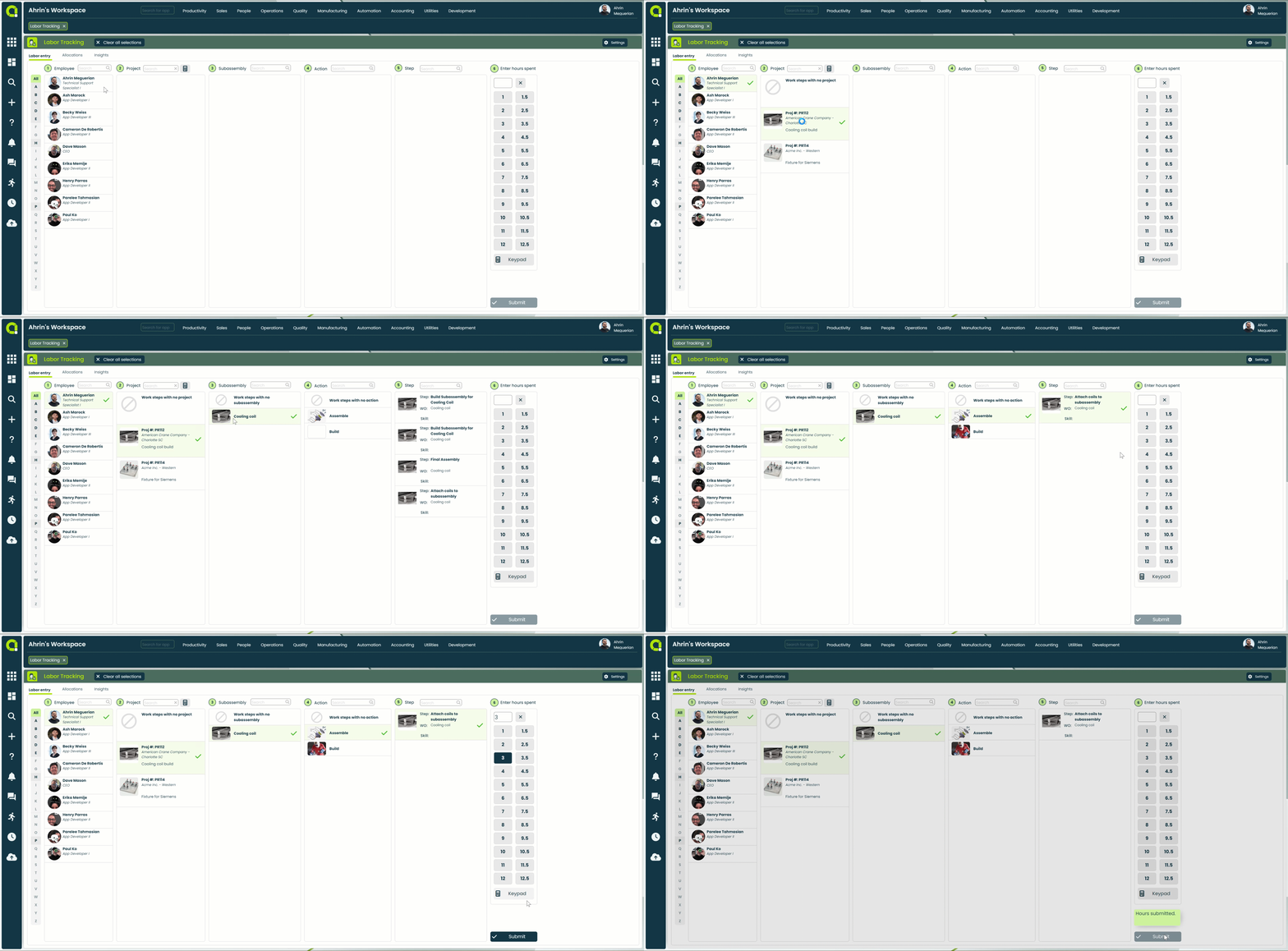
There are five steps to creating a labor entry, let's go over them.
Step 1: Employee
The first step of the labor entry process is to select an employee from a list directly imported from your organization's Employees app.
On the left side of this list, you'll find a convenient sorting feature for your employees. A highlighted letter signifies the presence of an employee whose first name begins with that letter. Conversely, a greyed-out letter indicates the absence of employees with names starting with that letter in the list.
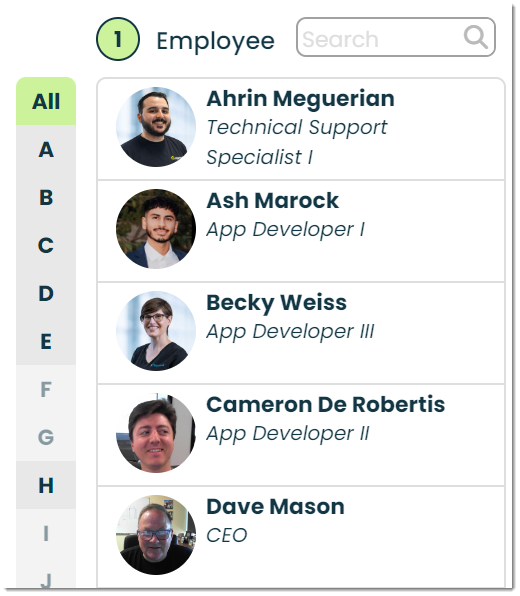
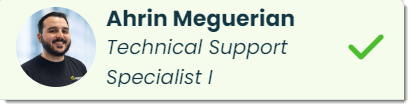
To select an employee, simply click on the employees name in the list. This will highlight them and make step 2 available.
Step 2: Project
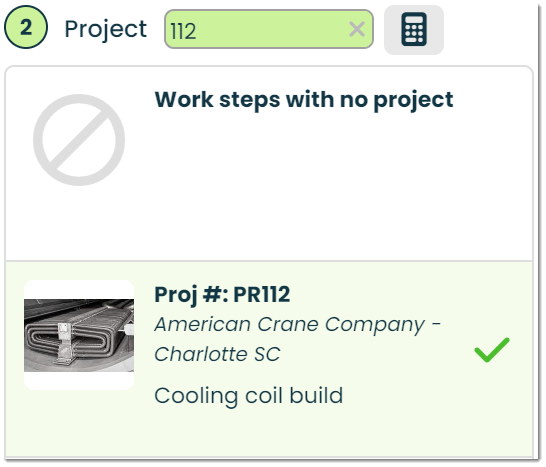
The second step is to select a project that will be associated with the selected employee who is adding a labor entry.
To choose a project, simply search for the desired project and select it from the list of options available.
The Labor Tracking app features many tablet and mobile friendly features. We'll cover them throughout this guide.
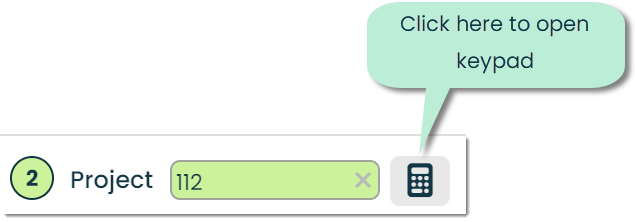
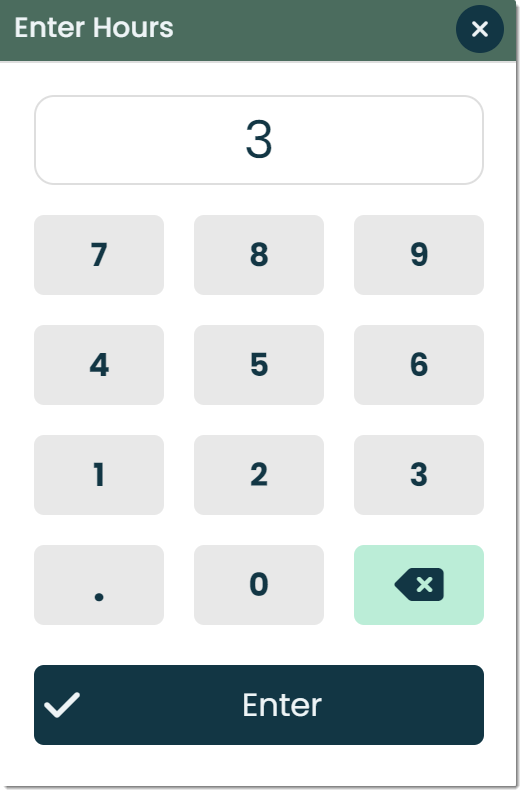
Searching with keypad - When using a tablet or handheld device, you can search records more conveniently by using a keypad instead of a traditional keyboard. Simply click on the keypad icon to enable this feature.
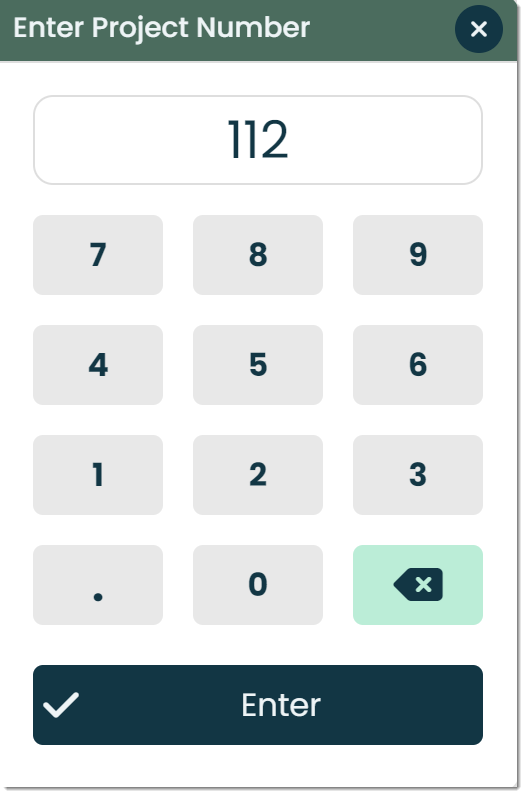
This will bring up the Enter Project Number popup, where you can use the tablet-friendly keypad to search for a project.
Step 3: Subassembly
After selecting the project you'd like to track labor on, you have the option of selecting a subassembly of the project.
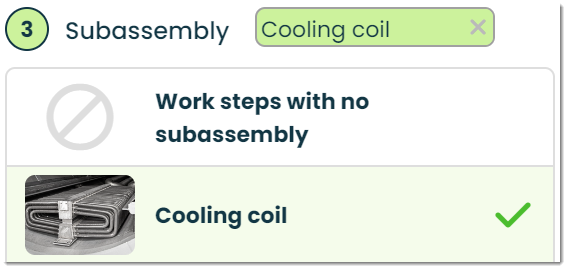
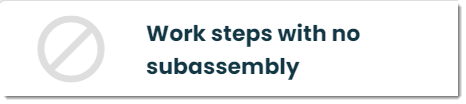
If there are no subassemblies associated with the specific labor you are trying to track, select the Work steps with no subassembly option.
Step 4: Actions
Narrowing it down even further, step 4 is where you can select specific actions related to a project & subassembly.
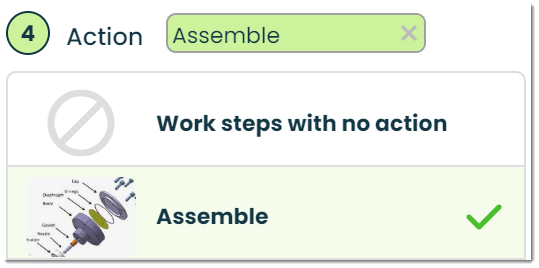
You can also select the Work steps with no action option if you wish to look for a work step (in step 5) that has no actions.

Step 5: Step
In step 5, you can select the specific step in relation to the subassembly selected that will be worked on.
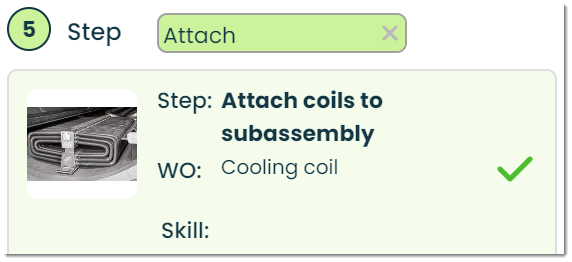
This list provides you with the name of the step , the specific work order, and the required skills to complete the step.
Step 6: Enter hours spent
The last step of the labor tracking process is to enter the hours spent. You can use the tablet friendly keypad-style buttons to enter in the hours spent on the labor task, or use text entry by typing in the value yourself.
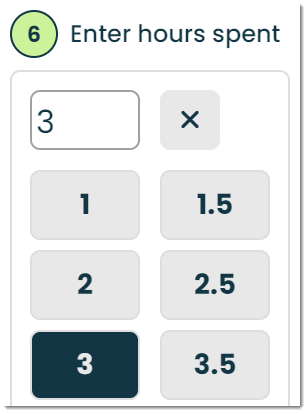
Similar to step 2 where we went over how to search for projects using a keypad, you can enter in the hours spent on a labor task by using the keypad found in step 6.
When you're ready to submit, simply click on the submit button to create your labor entry.

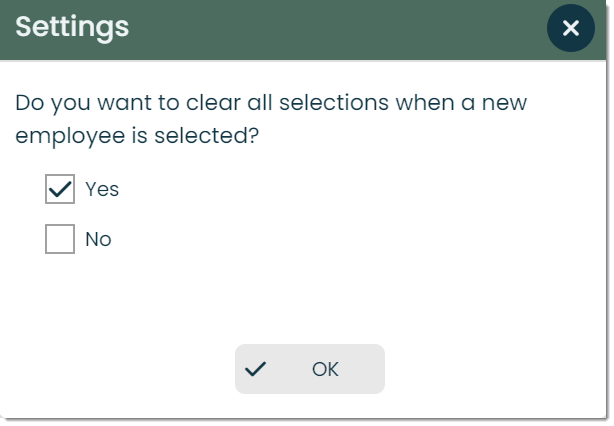
Additional settings - To access additional settings, click on the settings button found in the top right corner of the app screen. This will bring up the Settings popup, where you can decide if you'd like to clear the screen when a new employee is selected. This is especially helpful when multiple employees need to use the same device to track their labor.

Viewing allocations
To view a list of your organization's created labor entries, navigate to the Allocations tab. Let's cover what's available here.

Allocation ID - A unique identifier assigned to each labor allocation.
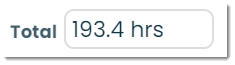
Total count - The total number of hours of labor entries in the list.
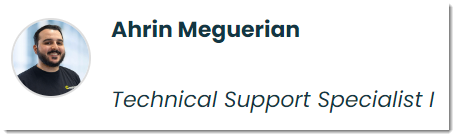
Name - The name, title, and image of the employee associated with the labor allocation.
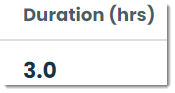
Duration - The length of time or duration of the labor allocation.
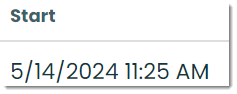
Start date -The date when the labor allocation begins.
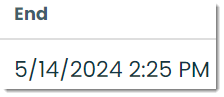
End date - The date when the labor allocation ends.
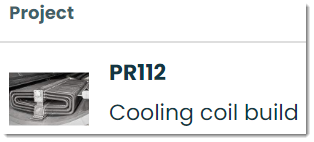
Project - The project to which the labor allocation is assigned.
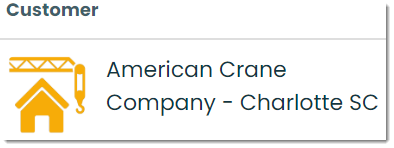
Customer - The customer company associated with the labor allocation. This customer is assigned during the creation of the projects record.
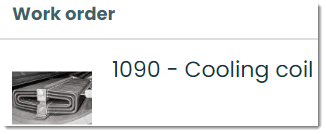
Work order - The work order associated with the labor allocation..
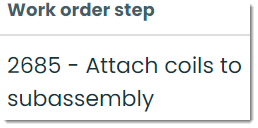
Work order step - The particular step of the work order corresponding to the labor allocation.
Frontline features of Labor Tracking
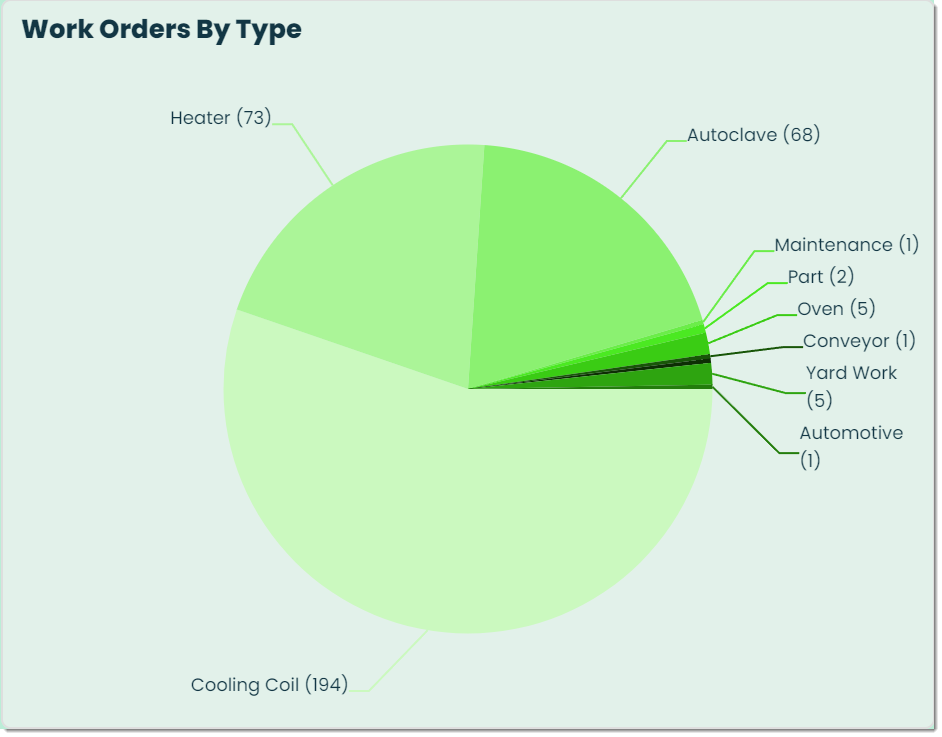
Insights - This tab is used to analyze data from your organization’s labor allocations. Using Insights, you have the opportunity to uncover and make use of valuable information related to labor types, statuses, actions and more. For more on Insights, please check out our Getting Started with Insights guide.
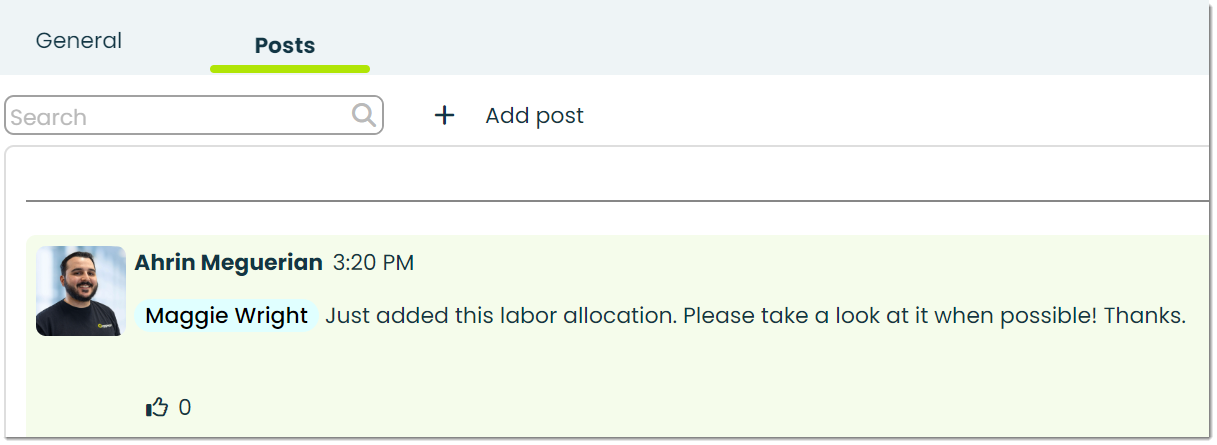
Posts - In Appward, a post is a comment that can be liked or replied to directly by other members of your organization. Within Labor Tracking, a common way of using posts is to write to management or other team members with comments or notes regarding a task.
Latest Articles
- Getting Started with Locations
- Getting Started with Changes
- Getting Started with Labor Tracking
- Getting Started with Conversations
- Getting Started with Report Builder
- Getting Started with Budgets
- Getting Started with Boards
- Getting Started with Whiteboards
- Getting Started with Inspections
- Getting Started with Support Contracts